Uvily Light
Uvily Light
Uvily Light
When a smart bulb refuses to connect, the problem is rarely the bulb alone. Your phone may be using mobile data, while the lamp expects a 2.4 GHz network. A weak signal can also interrupt setup beside a thick wall, metal cabinet, or microwave. If you are searching “why is my smart lighting not connecting to wifi,” begin with the simple checks. Confirm the bulb has power, then watch its indicator light during pairing. A blinking light often means setup mode is active. No light usually suggests a reset or power issue. Small details matter.
This guide explains practical causes, including incorrect WiFi passwords, incompatible network bands, router restrictions, and outdated apps. It also covers safe reset steps and reliable testing methods. You will learn how to separate a device fault from a network problem without guessing. I have found that restarting the router can help, but it should not become the only solution. Sometimes, repeated resets hide a weak signal or an account permission error. Check one factor at a time. Keep the bulb close to the router during setup, but avoid assuming distance is always responsible. If the light connects briefly and then disappears, firmware, router settings, or cloud service issues may be involved. The goal is a stable connection, not merely a temporary pairing success.
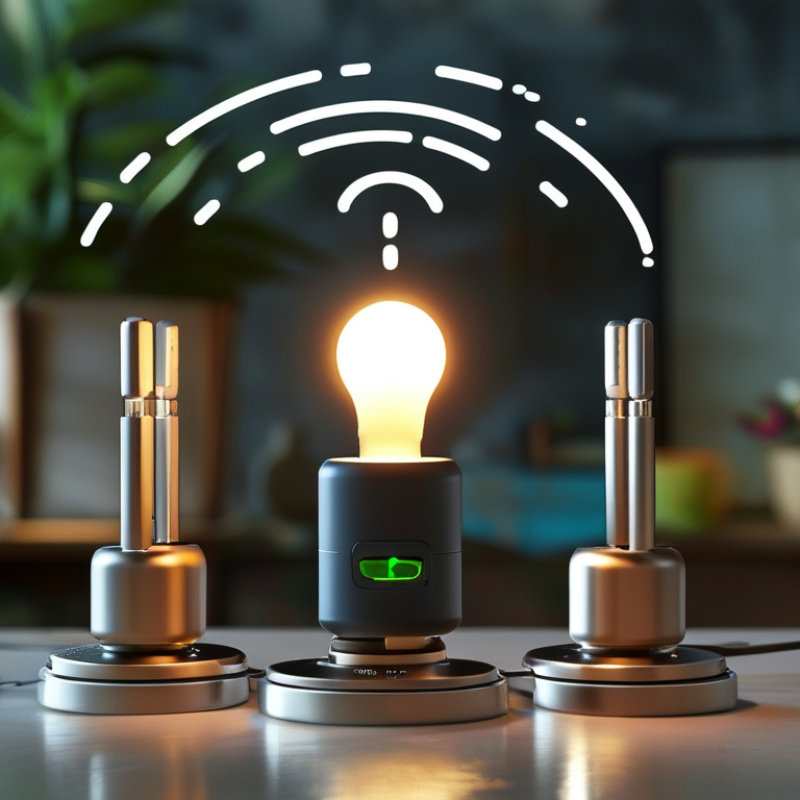
How to Fix Smart Lighting Not Connecting to WiFi?
Smart lighting often fails to connect because the network settings do not match its requirements. Many devices support only the 2.4 GHz band, while phones automatically use 5 GHz. During installation, check the router’s band and move your phone closer to the light. A weak signal can look like a password error.
Incorrect credentials are another common cause. Re-enter the WiFi name and password carefully, especially when spaces or special characters are included. I have seen successful connections fail after one hidden typing mistake. Restart the light, router, and control app before trying again. This simple step clears temporary communication errors.
Router security settings can also block new devices. Guest networks, device isolation, access controls, and full connection lists deserve attention. Check whether the router has assigned an IP address to the light. If not, restart DHCP services or reconnect fewer devices temporarily. Firmware may be outdated, too, so use the official update process when available. Keep the light powered during updates.
Physical conditions matter as well. Thick walls, metal cabinets, and crowded wireless channels reduce reliability. Test the light in the same room as the router. If it connects there, distance or interference is probably involved. Do not ignore electrical safety; switch off power before handling fixed wiring. I sometimes expect one reset to solve everything, but repeated failures may indicate router compatibility or a defective unit. Documenting each test prevents guesswork.
| Common Cause | Typical Symptoms | How to Verify | Recommended Fix | Priority |
|---|---|---|---|---|
| Unsupported WiFi band | The light fails during setup or cannot see the wireless network. | Check the product specifications and confirm whether the device supports 2.4 GHz, 5 GHz, or both. | Connect the light to a supported band. Many smart lights require a 2.4 GHz network during setup. | High |
| Incorrect WiFi password | The setup process repeatedly reports an authentication or password error. | Reconnect another device using the same network name and password. Check capitalization and special characters. | Re-enter the password carefully. If necessary, update the password and reconnect the light. | High |
| Weak or unstable signal | The light connects intermittently, responds slowly, or goes offline after installation. | Temporarily move the light closer to the router or test the signal at the installation location with a phone. | Reduce walls and metal obstructions, reposition the router, or add a properly configured access point. | High |
| Network security incompatibility | The network is visible, but the light cannot complete authentication. | Review the router's security mode and compare it with the light's documented requirements. | Use a security mode supported by the device. Avoid weakening the main network permanently; use a separate compatible IoT network when appropriate. | High |
| Phone connected to the wrong network | The setup app cannot find the light or transfers the wrong network details. | Check the phone's active WiFi network and temporarily disable automatic switching to mobile data or another saved network. | Connect the phone to the intended home WiFi before starting setup. Keep the phone near the light. | Medium |
| Bluetooth, location, or local-network permission disabled | The app opens normally but cannot discover or configure the light. | Review the app permissions in the phone's operating-system settings. | Allow the permissions required by the setup process, then restart the app and retry pairing. | Medium |
| Router access controls or client isolation | The light joins WiFi but cannot be controlled locally or cannot finish setup. | Check whether guest mode, MAC filtering, access control, or client isolation is enabled. | Use the primary IoT network or allow communication between the phone and the light, while retaining appropriate security controls. | Medium |
| DHCP address exhaustion or network overload | New devices cannot obtain an IP address, while existing devices remain connected. | Inspect the router's connected-device list, DHCP pool, and system logs. | Remove inactive devices, expand the DHCP address range, or restart the router if its service is temporarily stuck. | Medium |
| Temporary app, cloud, or router outage | Several devices fail at the same time, or the app cannot load account and device information. | Test other internet services and check the service-status information provided by the relevant service. | Wait for the outage to clear, restart the router and app, and avoid repeated factory resets during a service interruption. | Medium |
| Outdated firmware or setup application | Pairing fails after a router or phone update, or the device repeatedly loses its configuration. | Compare the installed app and device firmware versions with the latest versions listed in the product documentation. | Update the app and device firmware when possible, then reboot the light and router before retrying. | Medium |
| Previous WiFi credentials stored in the light | The light was connected before but will not join a new router or changed network. | Confirm that the network name, password, or router has changed since the last successful connection. | Perform the device's documented WiFi reset or factory reset, then complete setup again. | Low |
Recommended troubleshooting order: verify power, confirm the supported WiFi band, check the password, improve signal strength, review router restrictions, update software, and reset the light only as a final step.
: Turn it off at the switch for ten seconds. Restore power and repeat the cycle as instructed. Rapid blinking or a color change usually signals pairing mode.
Wait at least one minute. Do not interrupt the blinking. Patience matters here.
Use a stable 2.4 GHz network when the light does not support 5 GHz. Keep your phone and light near the router during setup.
Enable Bluetooth and location access when requested. Remove the old device entry, then choose “Add device” again. Nearby discovery can be sensitive.
Enter it carefully, including every character. One extra space can stop pairing. This small mistake is easy to miss.
Yes. Restart both devices, then wait two minutes before trying again. A short pause can clear a temporary connection problem.
Move it within a few meters of the router. Avoid metal fixtures and thick concrete walls. Return it later to its usual position.
A factory reset may restore pairing, but it erases schedules and room settings. Record important settings beforehand. I have sometimes created extra work by resetting too quickly.
When asking, “why is my smart lighting not connecting to wifi,” start by checking the most common causes, including interrupted power, weak WiFi coverage, an incorrect password, or an incompatible network frequency. Make sure the light is switched on, placed within a reliable signal range, and connected to a supported home network. Restarting the router can also help clear temporary network issues.
If the problem continues, reset the smart light according to its instructions and wait for it to enter pairing mode. Open the related mobile app, add the light again, and follow the setup steps carefully. After pairing, test the light by turning it on and off remotely, then check whether it remains connected. To prevent future disconnections, keep the light within good WiFi range, maintain updated app and device software, avoid changing network settings unnecessarily, and periodically check your router’s stability.